Tables and seats
Choose a table’s shape, size and number of seats, rename it, recolour it, lock it or hide seats.
Click a table in the editor. Its settings open on the right.
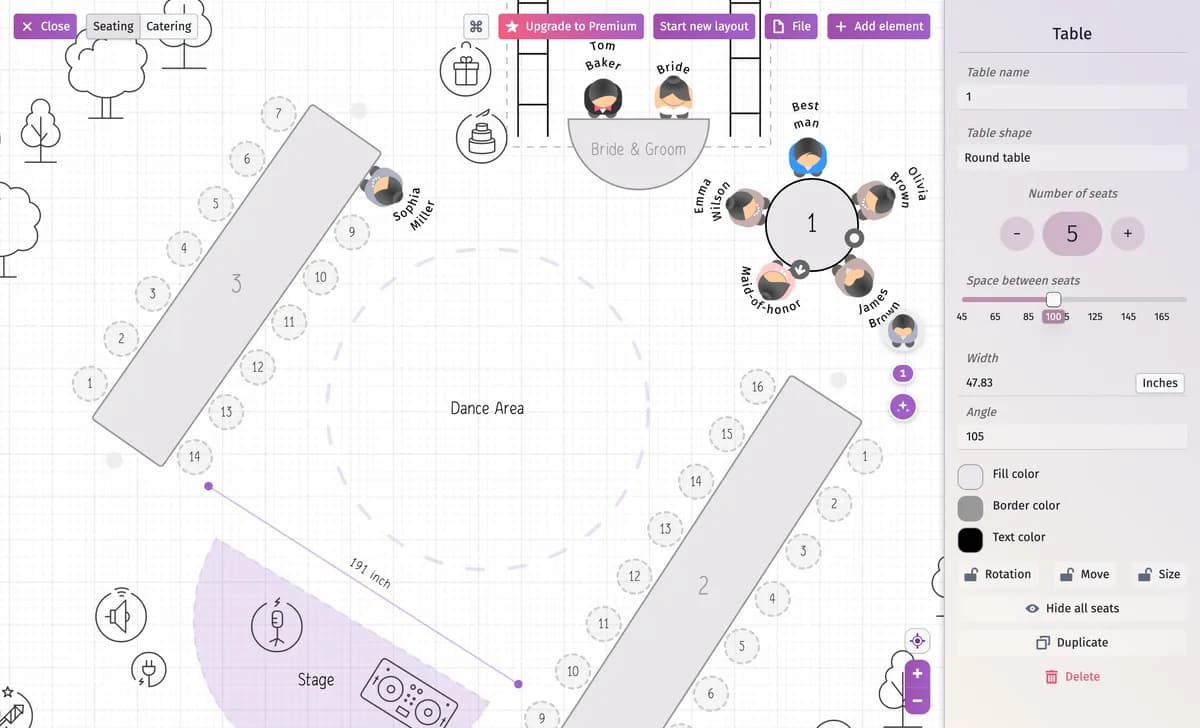
A table’s settings
- Table name — the number or name guests see on the chart and on the table cards, such as “7” or “Family”.
- Table shape — switch the table to another shape.
- Number of seats — - and +; Space between seats spreads the seats out or brings them closer.
- Width (in inches or centimetres) and Angle — or drag the table’s handles.
- Fill color, Border color and Text color for this table only.
- Rotation, Move and Size — lock the table so it can’t be turned, moved or resized by accident.
Hide a seat
Right-click a seat and choose Hide this seat from layout — for example where a pillar stands. The seats are numbered again without it; Show this seat on the layout brings it back. Hide all seats in the table’s settings hides every seat of the table.
Kinds of tables
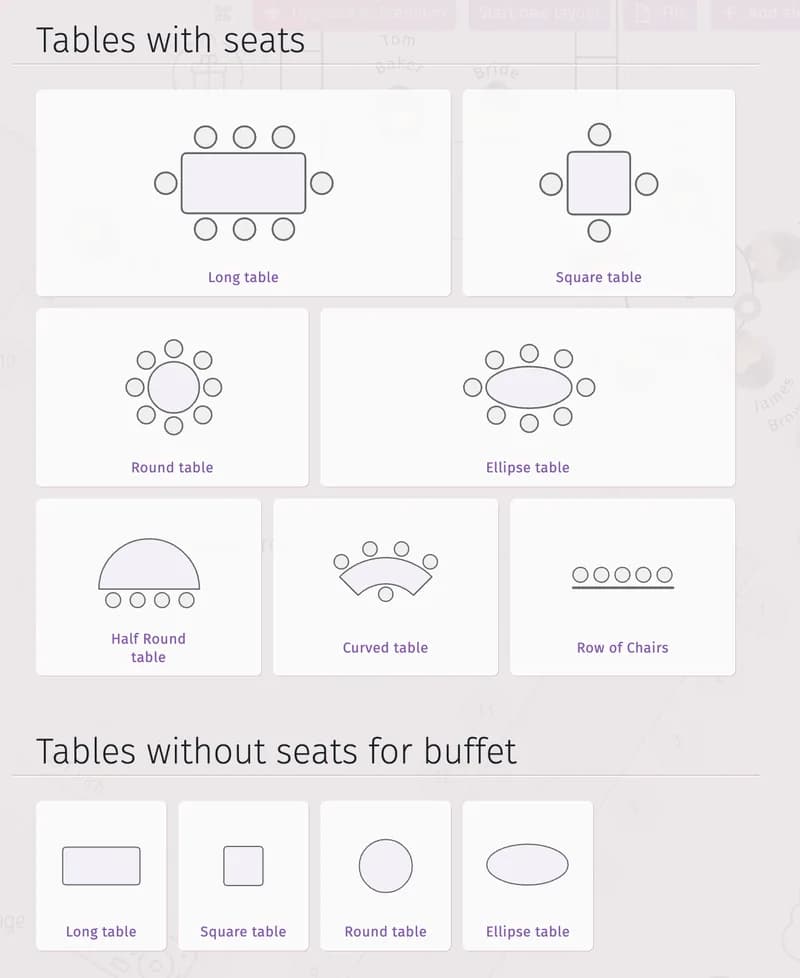
Add element → Tables with seats has long, square, round, ellipse, half-round and curved tables and a Row of Chairs. Tables without seats for buffet are for food and drinks: guests aren’t seated there.
Tips and important notes
- Duplicate copies the table with its settings; right-click works too.
- On the free plan a chart holds up to 5 tables and, on a reception chart, 3 rows of chairs — see Free plan limits.
- Curved tables have a few more settings — see Curved tables.
Updated November 3, 2026