Families and households
Group guests into a family so they stay together and can answer the RSVP together.
A family (or household) groups the guests who are invited together — a couple, parents with their children. Guests with the same surname are not grouped by themselves: you create the family and add each member.
Step by step
Step 1Create the family
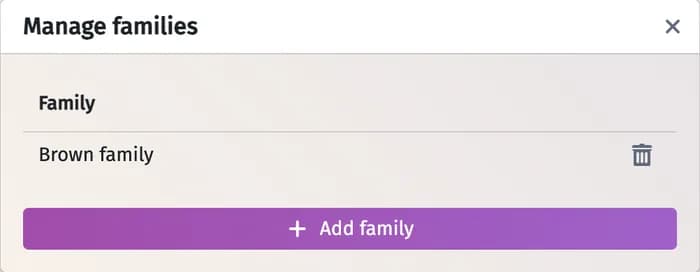
Open Settings → Families above the guest list, click Add family, type a name such as “Brown family” and click Add.
Step 2Add the members
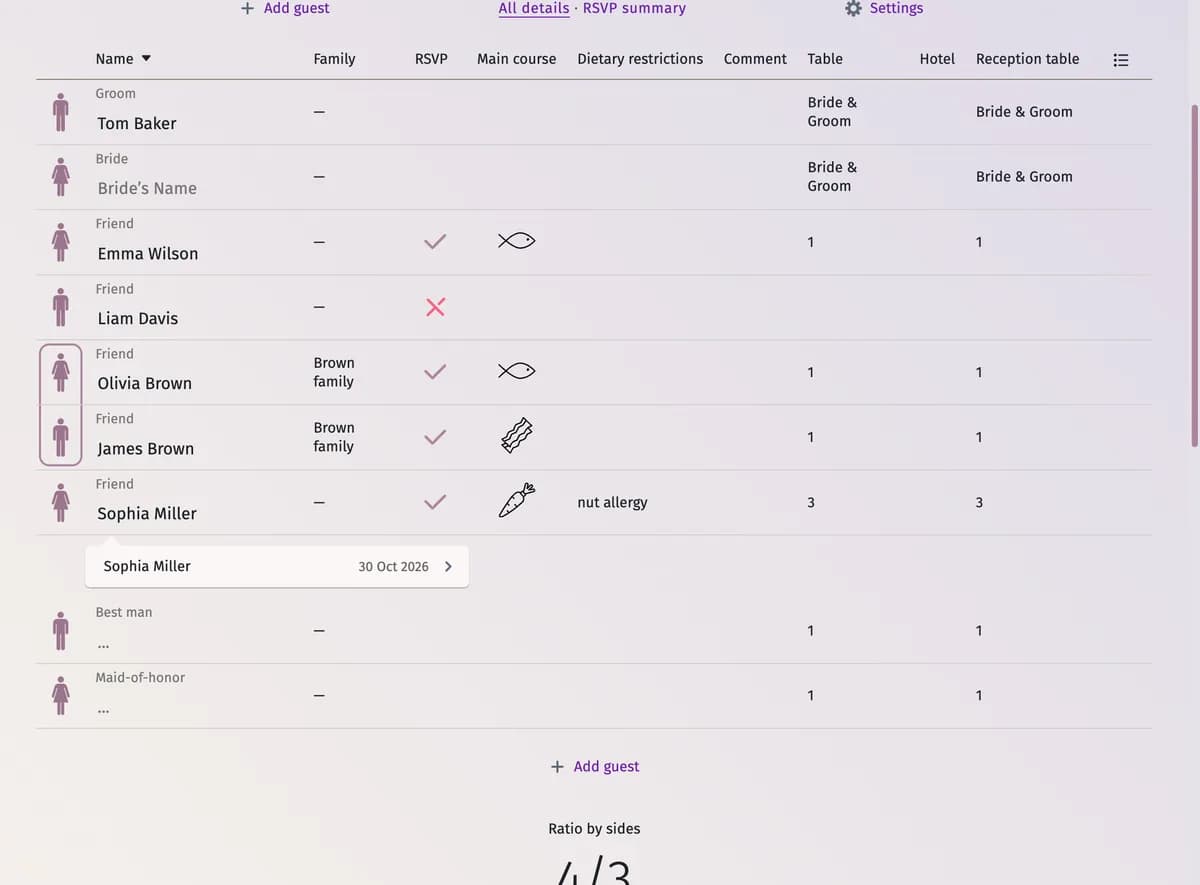
Open each member’s profile (click the figure next to the name) and choose the family in Family, or set it in the Family column of the Full table view. Both menus also have Add family, so you can create a family right there.
Step 3Check the result
In the Full table view the members of a family are listed one after another and framed together.
What families are used for
- On your wedding website, one member can answer for the whole family through their personal invitation link.
- The statistics count one invitation per family — see Guest statistics.
- The exported list can be grouped by family: Group guests by families/household in Export settings.
- On the seating chart, the seat panel lists the members of a family together, outlined.
Rename or delete a family
In Manage families, click a family’s name to change it, or click the bin to delete it. A deleted family is removed from every profile; the guests stay in the list.
Tips and important notes
- A plus-one belongs in the same family as the guest who brings them — see Plus-ones.
- You can’t move guests up or down by hand — putting them in a family is what keeps them together.
Updated November 3, 2026