More websites and other languages
Make a copy of your website in another language, or a separate website for another event.
A project can have several websites — for example the same wedding website in two languages, or a separate one for the rehearsal dinner. They all use your project’s guest list. More websites need Premium.
Step by step
Step 1Finish the first website
Fill in the main website first: a copy takes over everything you see on it.
Step 2Add a website
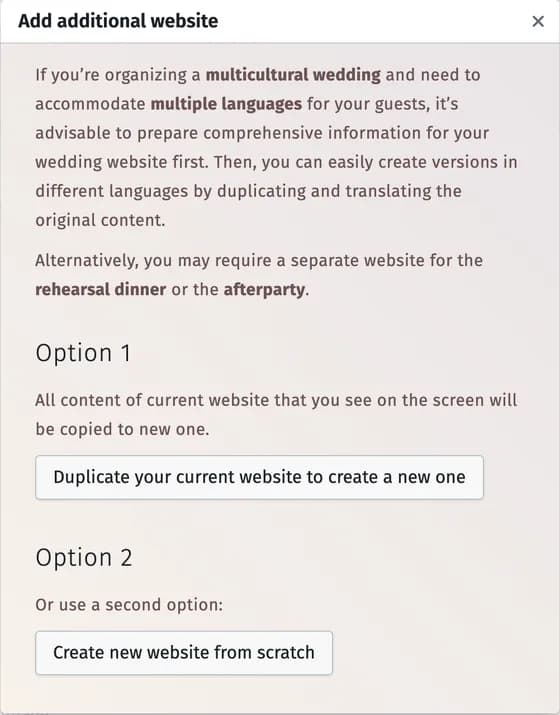
Open Basic settings and click Add another website. Choose Duplicate your current website to create a new one or Create new website from scratch.
Step 3Choose the language
Pick the new website’s language. Then choose Yes, please! Let’s do automatic translation — the texts are translated in one or two minutes — or No, I’d prefer to translate it manually.
Step 4Link the languages
Choose the websites that should show a language switcher in their header and click Activate language switcher. Guests can then switch between the versions; you can also send each guest the link in their language.
Tips and important notes
- Read the translation before you share it — names, dates, places, the RSVP questions and answers.
- Each website has its own address, content, RSVP form and settings; later changes to one don’t reach the others. Check the RSVP field connections and visibility on each.
- Switch between your websites with the cards at the top of Website.
Updated November 3, 2026