Create your first project
Start a free wedding or event planning project in a few clicks — no account needed.
A project is your planning space: the guest list, the website, the seating chart, the checklist, the budget and every other tool live inside it. Creating one takes a few seconds, and you don’t need an account.
Step by step
Step 1Open the project wizard
Go to Create a wedding project. The same link is in the footer of every page of the site.
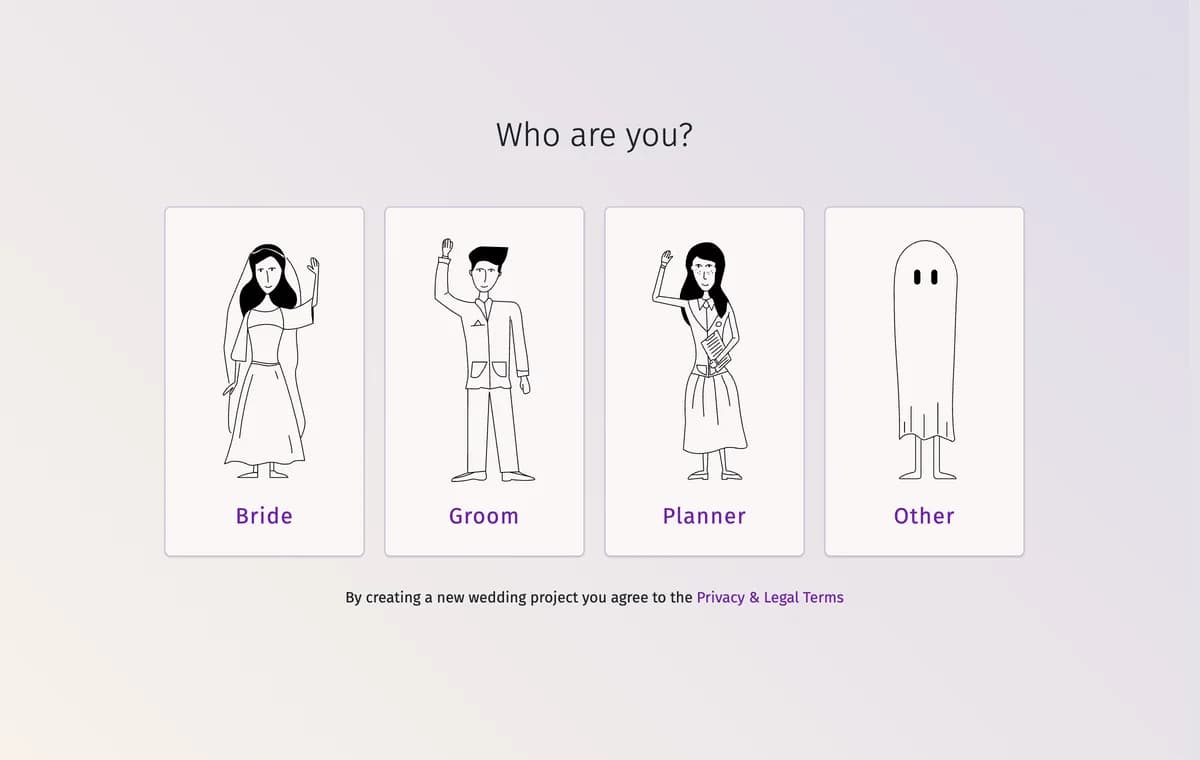
Step 2Tell us who you are
Choose Bride, Groom, Planner or Other. Bride, Groom and Other create a wedding project straight away.
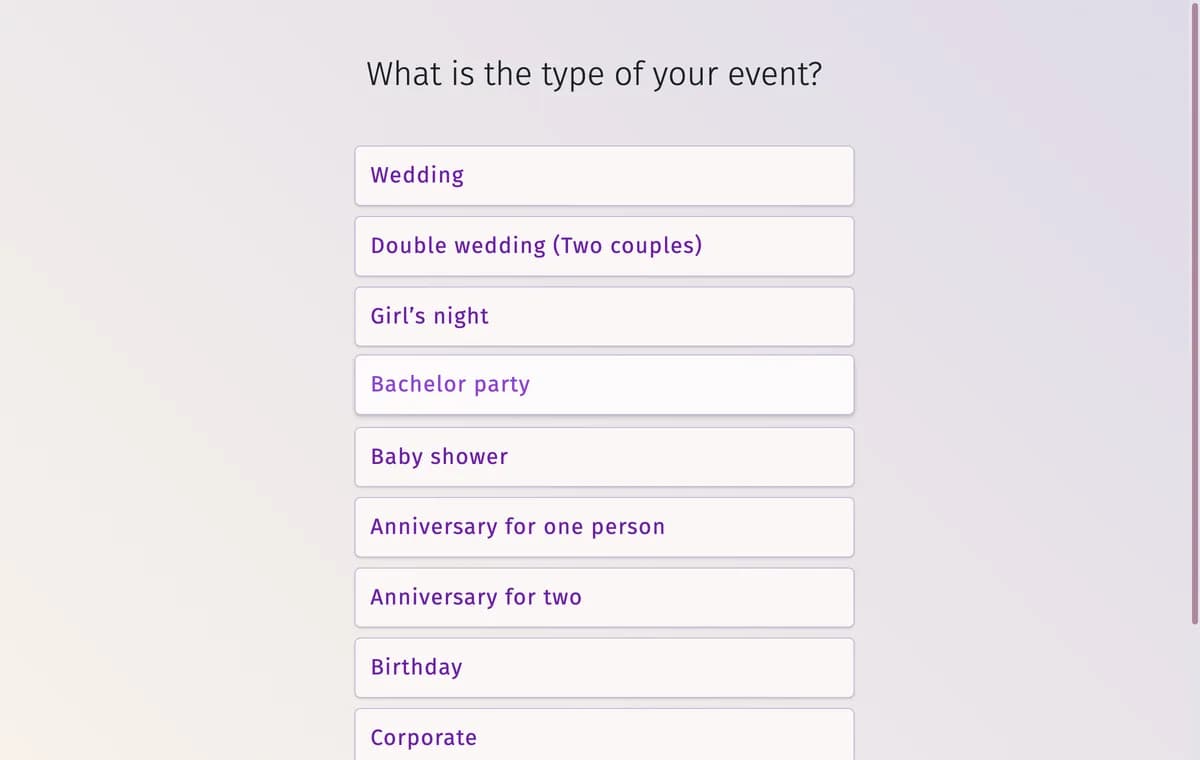
Step 3Planners: choose the type of event
If you chose Planner, pick the type of event: Wedding, Double wedding (Two couples), Girl’s night, Bachelor party, Baby shower, Anniversary for one person, Anniversary for two, Birthday, Corporate or Other event. Step Back returns to the previous screen.
Step 4Open your project
When you see “We created a private wedding planning space for you.”, click Open your project. The project opens on its Guest List.
Tips and important notes
- You can change the type of event later in Settings → Project type.
- Without an account, the project is remembered only in the browser you used. Sign in or register to keep it on every device — see Do I need an account?
- If this browser already has a project, the wizard first offers to open it (“You already have one active wedding project.”). Click create a new wedding project if you really need a second one.
- A new project already contains a checklist, a budget, an itinerary, a venue plan and two seating charts (ceremony and reception) in your language, so you can start from an example instead of a blank page.
Troubleshooting
- I created a project but can’t find it again.
- Open the site in the same browser and click My Projects at the top of the page. If you used another browser or cleared its data, the project opens only with its link — see Do I need an account?
Updated November 3, 2026