Change your website’s address
Choose the domain and the last part of your website’s link — for example your names.
Every website gets a link with a random ending. You can change it to something your guests remember.
Step by step
Step 1Open the basic settings
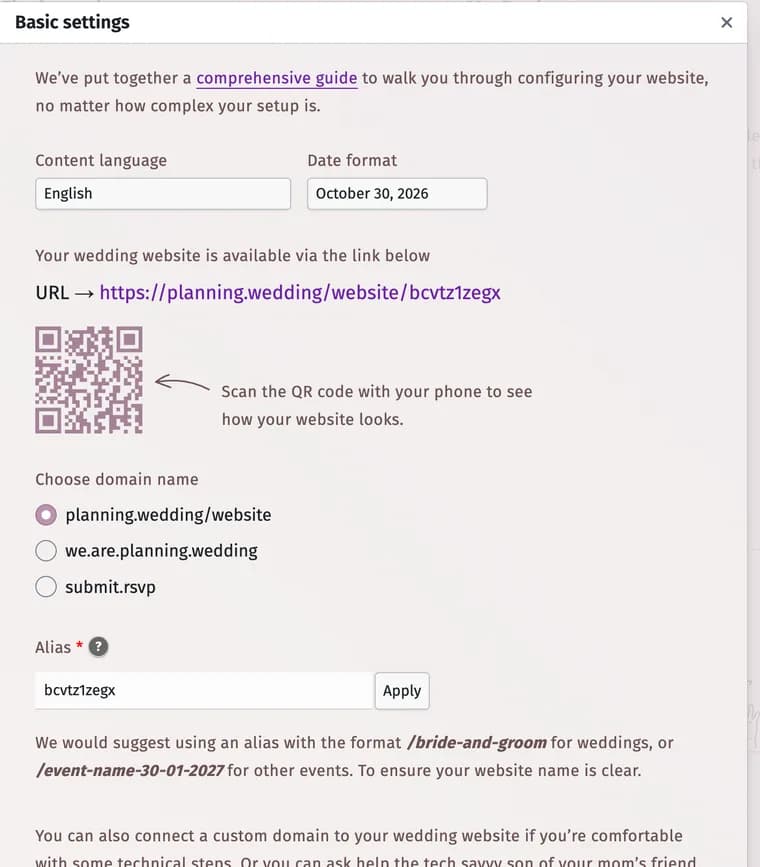
Open Website and click Basic settings. Your current link is at the top, with a QR code to open it on a phone.
Step 2Pick a domain
Under Choose domain name choose one of the addresses: planning.wedding/website, we.are.planning.wedding or submit.rsvp.
Step 3Type your alias
In Alias type the last part of the link — for example anna-and-tom, or the event’s name and date for other events — and click Apply.
Tips and important notes
- Choose the address before you send invitations or print QR codes. If you change it later, send your guests the new link.
- Want an address of your own, such as annaandtom.com? See Connect your own domain.
- Personal invitation links and QR codes follow the new address.
Updated November 3, 2026