Buy Premium for your project
Upgrade one project with a single payment — no subscription, no stored card.
Premium is bought for one project at a time, with a single payment.
Step by step
Step 1Open the Premium window
In the project, open Settings and click Upgrade to Premium. The window also opens when you try something that needs Premium, for example adding a sixth table or downloading the seating chart’s PDF. After a few days the menu on the left shows Upgrade to Premium too.
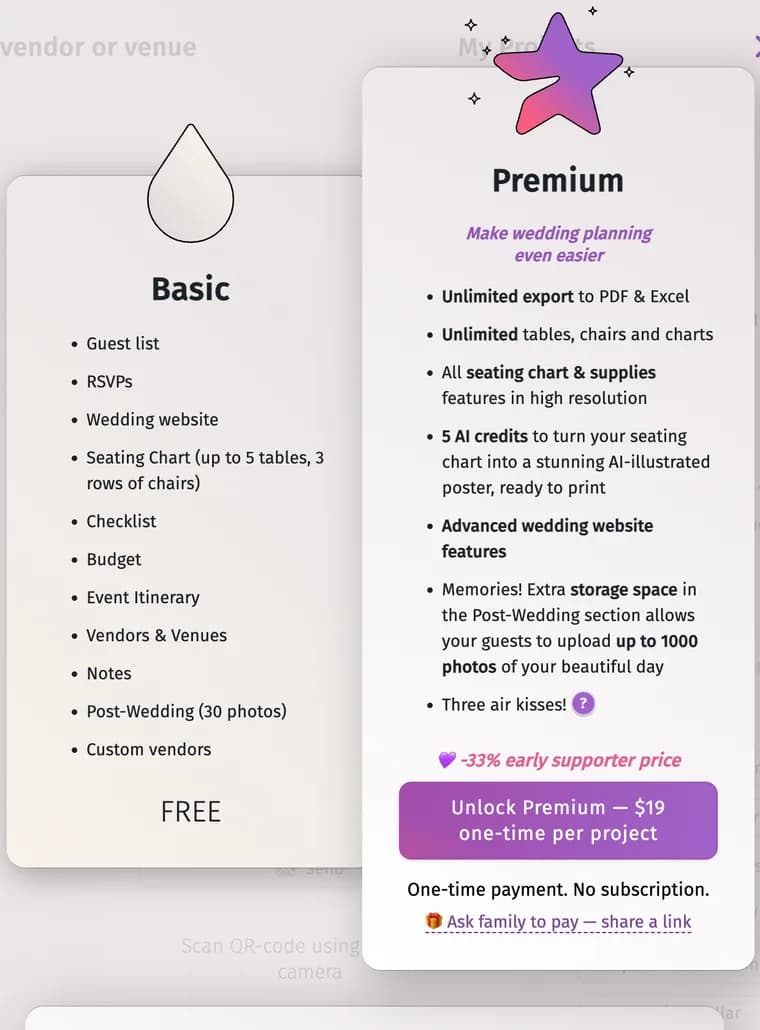
Step 2Check what you get and the price
The window compares Basic with Premium and shows the price on the unlock button — One-time payment. No subscription.
Step 3Pay
Click the unlock button and pay by card on the secure Stripe page. Your card details are handled by Stripe and are not stored by Planning.Wedding.
Step 4Back in your project
After the payment you return to the project, and the Premium features are switched on at once — for everyone who works in it.
Tips and important notes
- The price depends on your region and is always shown before you pay. It is lower when your account already has two or more Premium projects.
- Would someone like to give you Premium as a gift? 🎁 Ask family to pay — share a link under the button creates a link they can pay with — they don’t see your project.
- Premium belongs to the project it was bought for. Copies of the project and your other projects are not Premium.
- You can buy Premium without an account. Signing in keeps the project — and its Premium — safe on every device.
Troubleshooting
- I paid, but the project is not Premium.
- Reload the page. If it still isn’t, write to us with the e-mail you paid with — see Contact us.
Updated November 3, 2026