Find vendor or venueCreate new wedding project
 
Anonymous
Login  |  Register
  • Getting started
    • 6 articles
    • What is Planning.Wedding?
    • Create your first project
    • A quick tour of your project
    • Do I need an account?
    • Plan an event other than a wedding
    • Apps for iPhone, iPad and Android
  • Projects & collaboration
    • 10 articles
    • Share your project
    • Plan together in real time
    • Project settings
    • Hide the tools you don’t use
    • Copy a project
    • Project templates
    • Your list of projects
    • Archive or unfollow a project
    • Delete a project
    • Reset the project’s links
  • Guest list
    • 16 articles
    • Add guests to your guest list
    • Edit a guest’s details
    • Import your guest list from Excel, CSV or a photo
    • Export your guest list to PDF or Excel
    • Guest list views: two sides, alphabetic and full table
    • Guest roles and the wedding party
    • Two brides or two grooms
    • Families and households
    • Plus-ones
    • Main course options
    • Dietary restrictions and allergies
    • Custom fields
    • RSVP statuses
    • Guest statistics
    • Staff: the photographer, the band, the waiters
    • Remove guests
  • RSVP & invitations
    • 12 articles
    • How RSVPs work
    • Set up your RSVP form
    • Send personal invitation links
    • Review RSVP responses
    • QR codes for printed invitations
    • Let one guest answer for the whole family
    • Let guests choose their meal in the RSVP
    • Who sees a question, who answers it, and when it appears
    • Save RSVP answers to your guest list
    • RSVP deadline and who can answer
    • Extra events: a rehearsal dinner, a brunch, an after-party
    • RSVP e-mail notifications
  • Wedding website
    • 12 articles
    • Create and publish your wedding website
    • Add, edit and arrange the sections of your website
    • Templates, colours and fonts
    • Change your website’s address
    • Connect your own domain
    • Protect your website with a password
    • More websites and other languages
    • The preview when you share your website’s link
    • Let guests upload photos on your website
    • Add a video and music
    • Show your seating chart on the website
    • How many people visited your website
  • Seating chart
    • 16 articles
    • Create a seating chart
    • The seating chart editor
    • Seat your guests
    • Seat guests automatically
    • Download your seating chart as a PDF
    • Free plan limits for seating charts
    • Start over from a template or an empty layout
    • Tables and seats
    • Curved tables
    • How the chart looks: names, fonts, colours and paper
    • Continuous seat numbering
    • The catering view: meals on the chart
    • History, snapshots and backups
    • Use your venue’s floor plan
    • Keyboard shortcuts in the seating chart editor
    • AI-illustrated poster of your seating chart
  • Stationery & printing
    • 7 articles
    • Stationery from your seating chart
    • Place cards
    • Table numbers
    • Seating cards by table
    • Alphabetical guest list poster
    • Welcome sign
    • Reception menu and wedding program
  • Checklist
    • 5 articles
    • Use the wedding checklist
    • Sub-tasks and progress
    • Keep several checklists
    • Checklist templates and languages
    • Export the checklist
  • Budget
    • 6 articles
    • Set up your wedding budget
    • Budget categories and items
    • Track payments and deposits
    • Who pays for what: the breakdown by payers
    • The spending chart
    • Several budgets and export
  • Event itinerary
    • 4 articles
    • Build your wedding day itinerary
    • Days and events
    • Itinerary settings
    • Export the itinerary
  • Venues, overview & notes
    • 6 articles
    • Plan your venues
    • Weather and moon phase
    • Count who comes to each venue
    • The project overview
    • The overview poster
    • Notes
  • Post-wedding photos
    • 3 articles
    • Your post-wedding photo album
    • Let guests upload their photos
    • Download all photos
  • Vendors & venues
    • 6 articles
    • Find vendors and venues
    • Save a vendor to your project
    • Add your own vendors
    • Import vendors from a file
    • Request a quote
    • Review a vendor
  • Premium & payments
    • 5 articles
    • What is free and what Premium adds
    • Buy Premium for your project
    • Ask family to pay for Premium
    • AI credits
    • How much Premium costs
  • Account & sign-in
    • 5 articles
    • Sign up and sign in
    • Save your projects to your account
    • Reset your password
    • Your profile and e-mail notifications
    • Delete your account
  • For wedding businesses
    • 11 articles
    • Create a business profile
    • Complete your business profile
    • Business profile settings
    • Subscription and free trial
    • Billing, cards and invoices
    • Licences for several profiles
    • Cancel your subscription
    • Business analytics
    • Reviews of your business
    • Appear in search
    • White-label integration
  1. Help Center
  2. Guest list
  3. Guest list views: two sides, alphabetic and full table

Guest list views: two sides, alphabetic and full table

See the same list grouped by side, sorted by name, or as a table with every field.

The Guest List has three views of the same list. Switch between them with the buttons above the list — the browser remembers your choice.

Two sides

The bride’s guests on the left, the groom’s on the right, grouped by role: the couple first, then the wedding party, then everyone else. Each column has its own Add guest, so a new guest joins that side.
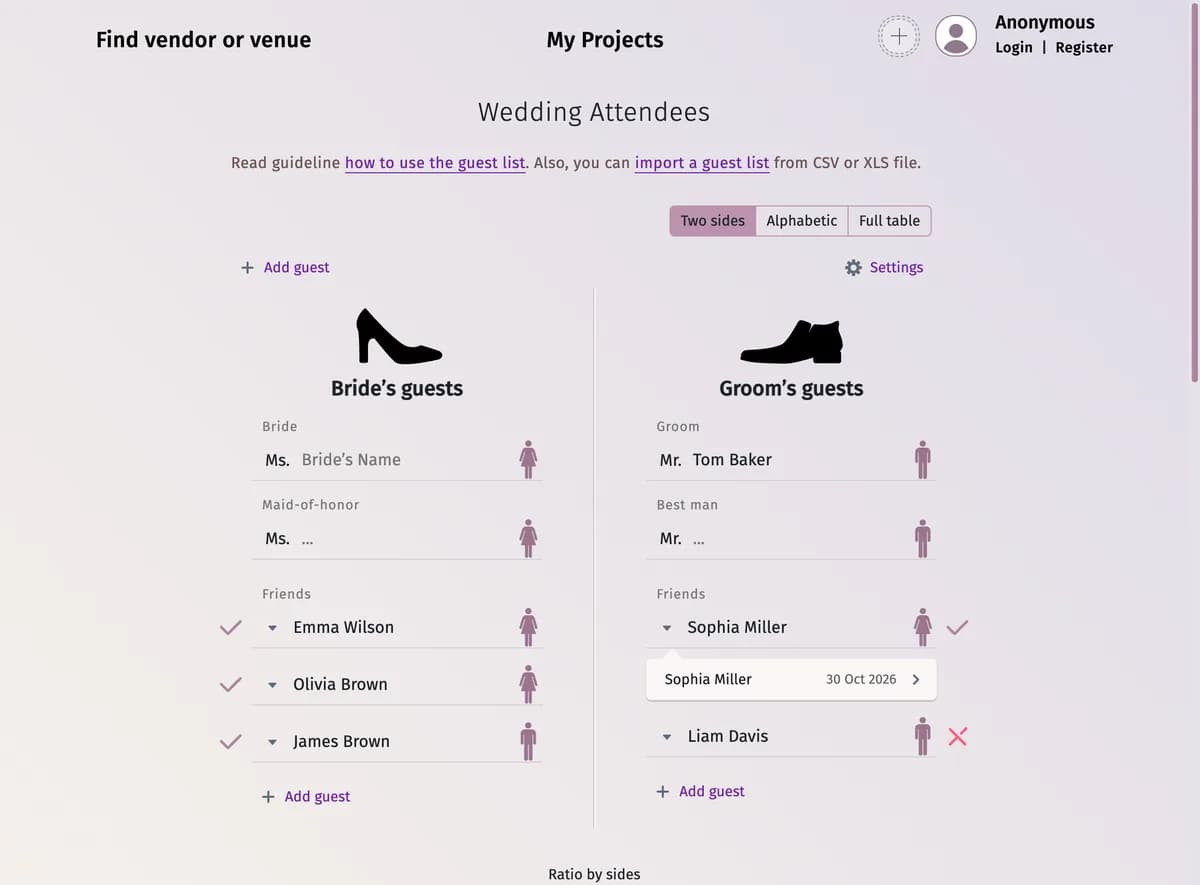
The Two sides view: Bride’s guests and Groom’s guests in two columns, with roles above the names and RSVP signs next to them

Alphabetic

One list in alphabetical order, under a letter for each name. Sort by First Name or Last Name changes the order; the couple stays at the top.
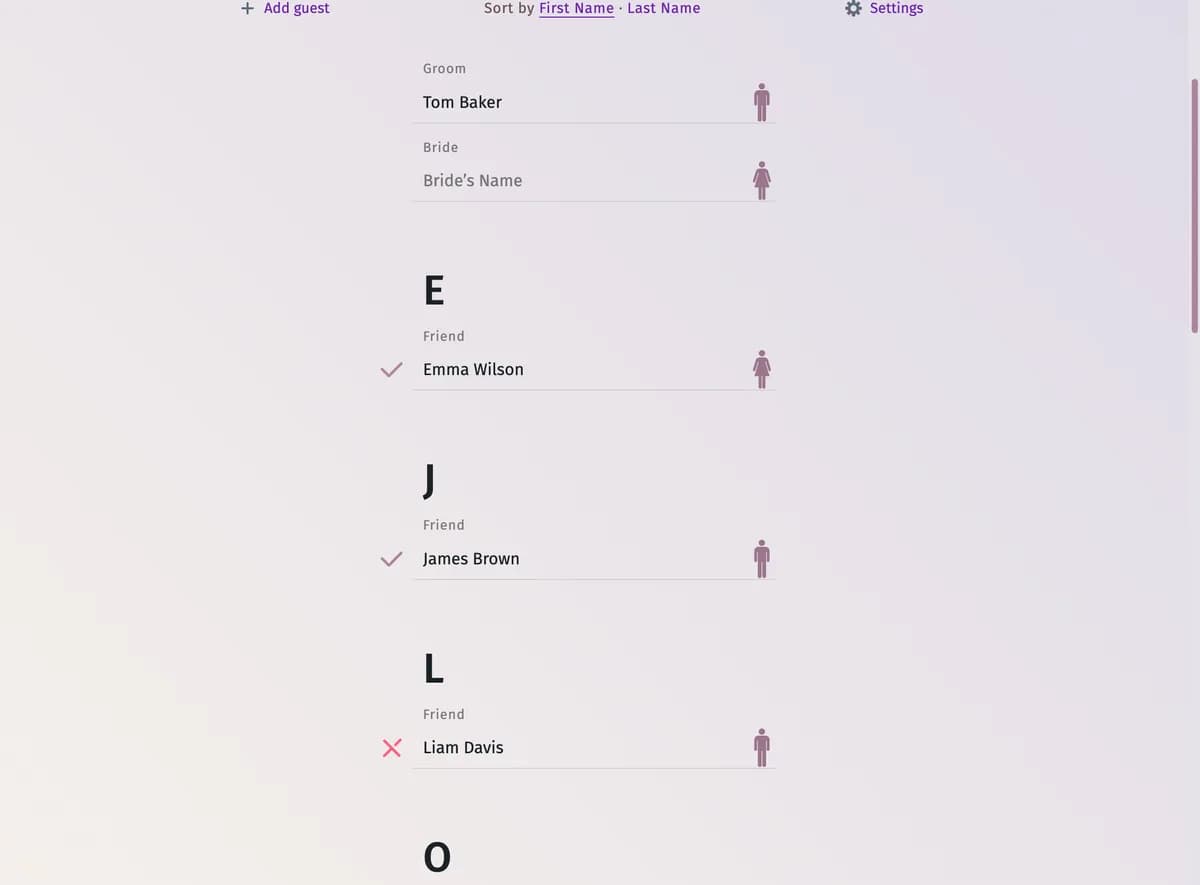
The Alphabetic view: the groom and the bride at the top, then the guests under the letters E, J and L, with Sort by First Name or Last Name

Full table

A row for each guest and a column for each field — family, RSVP status, main course, dietary restrictions, comment and your own fields. Click a cell to change it right there, or a column heading to sort by it. The members of a family are framed together.

  • All details — every field.
  • RSVP summary — only the name, the family, the RSVP status, the main course and your extra events.
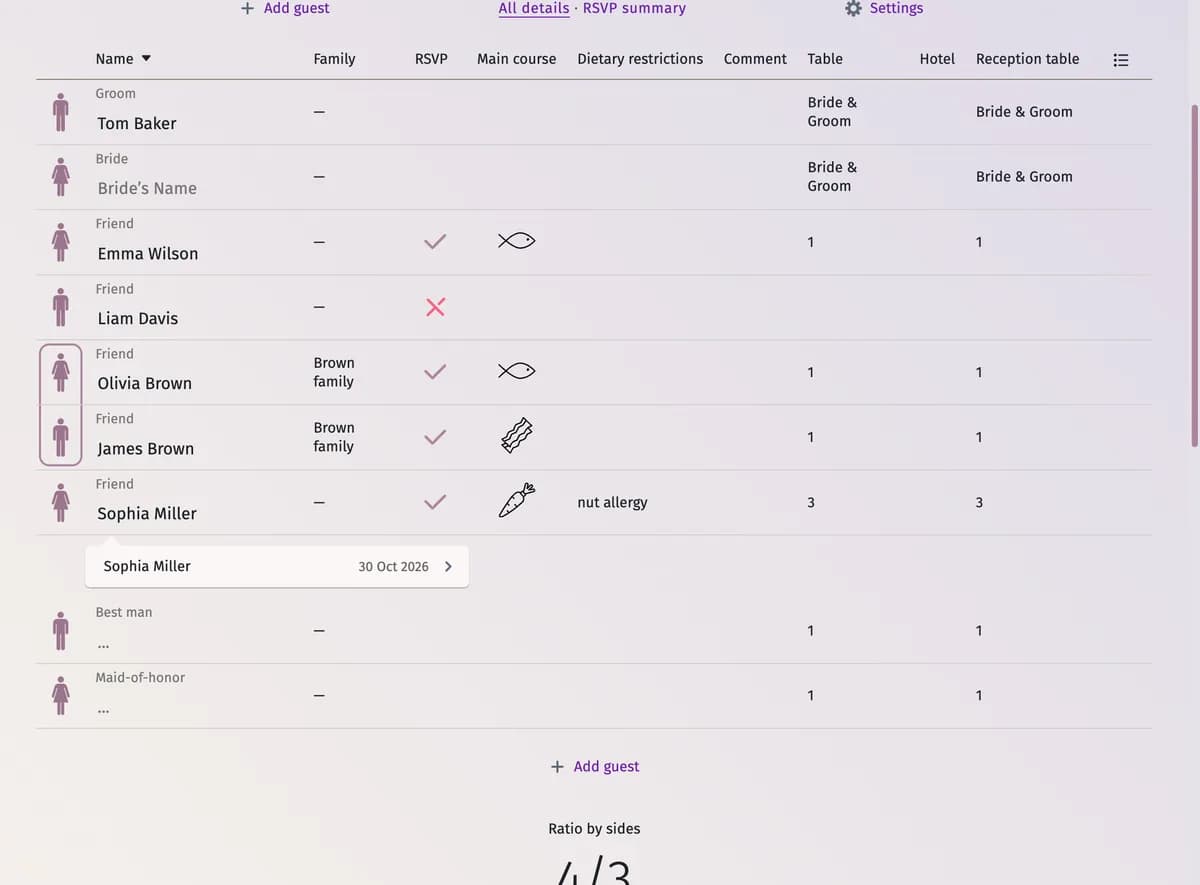
The Full table view: columns Name, Family, RSVP, Main course, Dietary restrictions, Comment and three custom fields, with the Brown family framed together

Tips and important notes

  • Once the list has more than 12 guests, a Quick search box appears above it.
  • Which fields are shown, and in what order, is set in Settings → Input fields — see Custom fields.
  • A project for another kind of event has no sides, so its list shows the Alphabetic and Full table views.
  • The counters under the list are the same in every view — see Guest statistics.

Updated November 3, 2026

Related articles

  • Add guests to your guest listAdd guests one by one in the Guest List, choosing each guest’s side and role.
  • Custom fieldsAdd your own fields to every guest — a hotel, a transfer, a phone number, a yes or no, an extra event or the guest’s table.
  • Guest statisticsUnderstand the counters under your guest list — sides, confirmed, pending, meals, staff and invitations.

Still need help?

Can’t find the answer? Write to us — a real person reads every message.

Contact us

On this page

  • Two sides
  • Alphabetic
  • Full table
  • Tips and important notes
Wedding planning
Planning toolsMy projectsCreate a wedding projectWedding photo of the dayIdeas & adviceApp for iPhone & iPadApp for Android
For business
Business portalVirtual venue toursWhite-label integrationPricing
Company
About usHelp & FAQJobsMedia kitContact us
Your plans. Always with you.

Take your wedding planning wherever you go.

Download on the App StoreGet it on Google Play
InstagramThreadsFacebookX / TwitterPinterestYouTube
4.97116 reviews
English
© 2026 Wedding Planning Assistant LLCPrivacy & Legal Terms