Import your guest list from Excel, CSV or a photo
Upload a spreadsheet or even a photo of your list, check the preview, and add everyone at once.
Already have your guests in a spreadsheet — or on paper? Upload the file, or a photo or screenshot of it. The guests are recognised automatically, and you check a preview before anything is added to your list.
Before you start
- A CSV, XLS or XLSX file, or an image (PNG, JPEG, WebP, GIF or HEIC) of your list, up to 10 MB.
- Full access to the project.
Step by step
Step 1Open the import
In the Guest List, open Settings → Import guest list. While your list has fewer than 15 guests, the Import guest list button is also shown under the list.
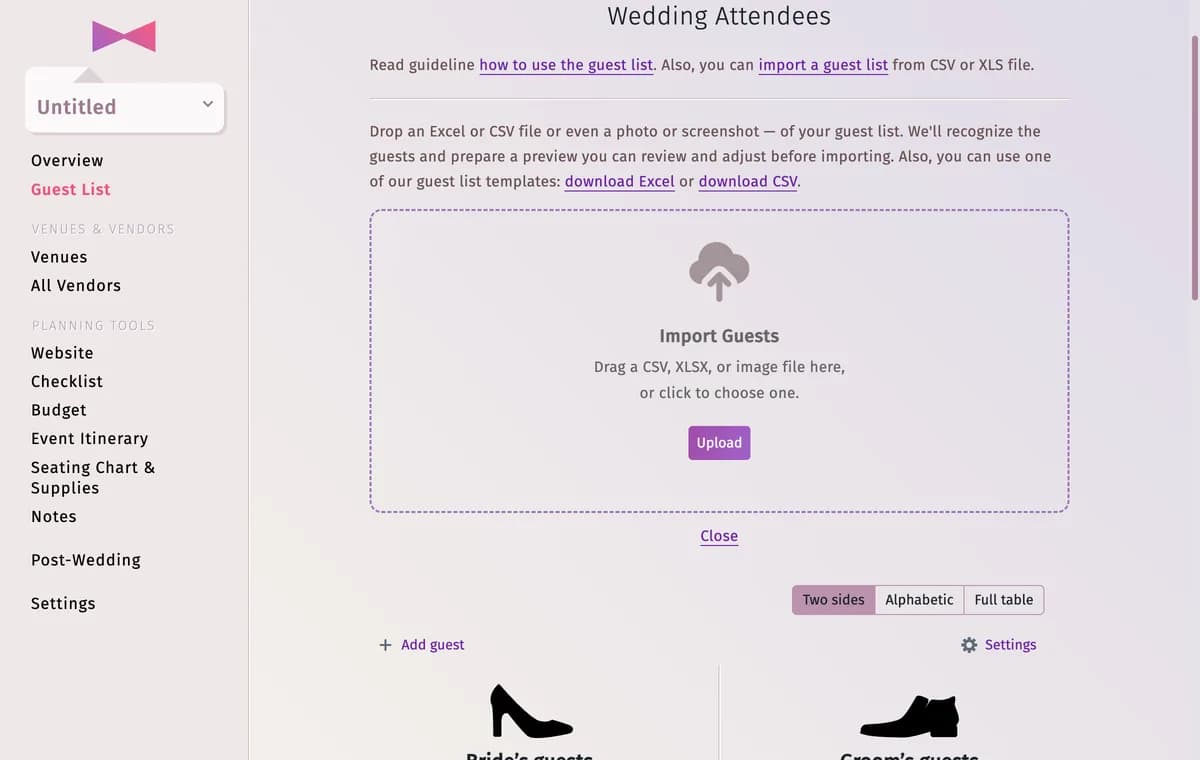
Step 2Choose the file
Drag the file onto Import Guests, or click Upload and pick it. Want a ready layout? Download the Excel or CSV template from the link above the drop area, fill it in and upload it.
Step 3Check the summary
In a few seconds you see the Import summary: how many records were found, how many are new and how many may already be in your list. Warnings explains any guess that was made, and New meals to create lists the main courses found in the file — click an icon to change it.
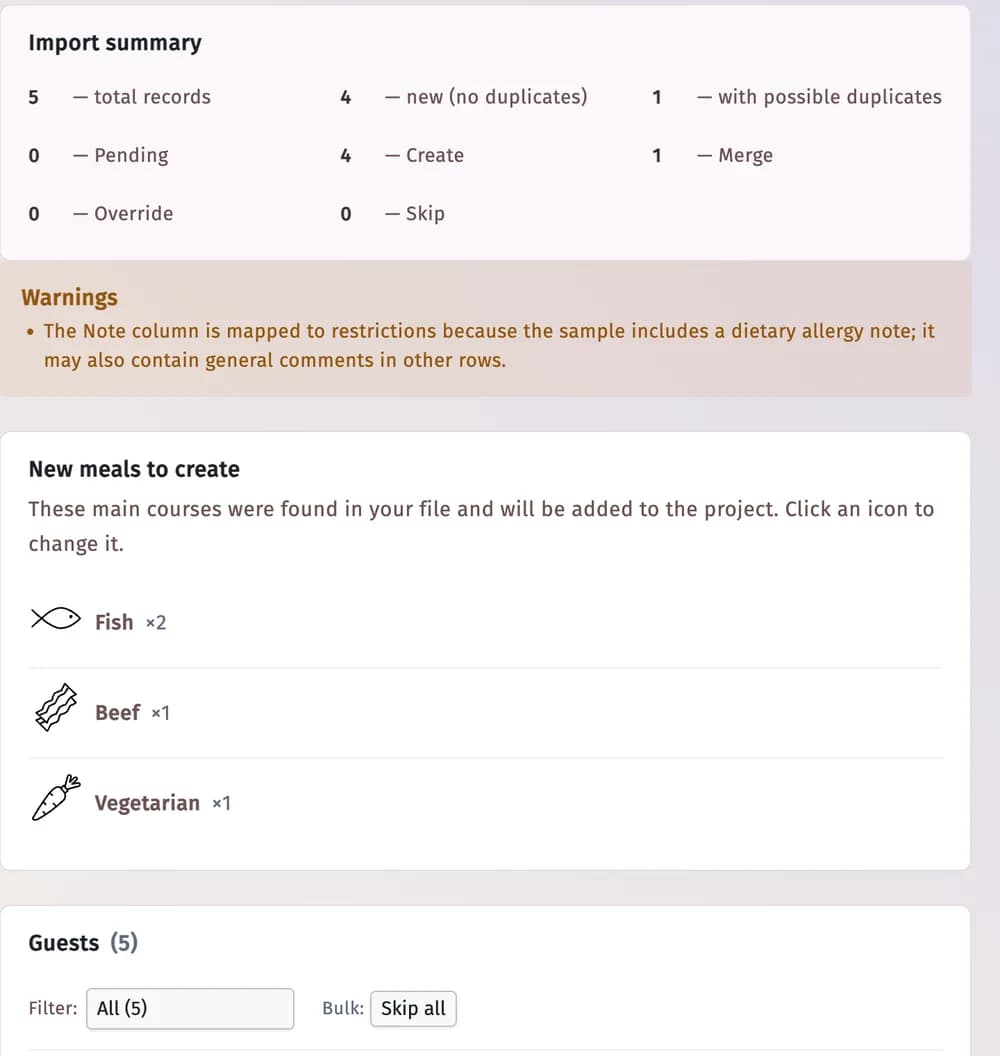
Step 4Decide for each guest
- Create — add as a new guest.
- Merge — keep the guest already in your list and only fill in the details that are empty there.
- Override — update the guest already in your list with the details from the file.
- Skip — leave this row out.
A row that matches a guest you already have shows the match, for example Exact match. Filter the rows with Needs decision or With duplicates, or use Skip all.
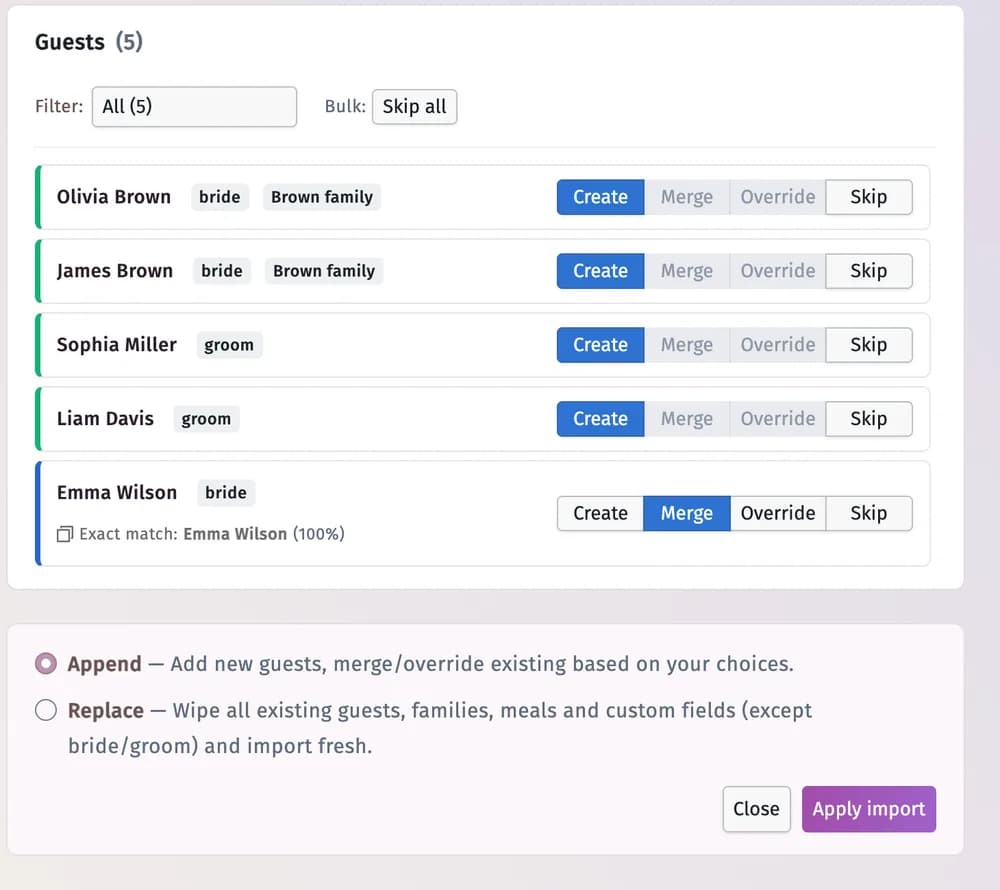
Step 5Choose how to add them
Append adds the new guests to your list and applies your choices to the matches. Replace first wipes all existing guests, families, meals and custom fields (except the bride and groom) — you must tick I understand — replace everything.
Step 6Apply the import
Click Apply import. You see Import applied with how many guests were created, merged, overridden and skipped. Click Done — the guests are in your list.

Tips and important notes
- Recognised details: first and last name (also from separate columns), family, side, role, sex, age, RSVP status, dietary restrictions, comment and main course. Any other column becomes a custom field — you can untick the ones you don’t want.
- Guests the file groups together (for example “Brown family”) become a family in your list.
- Apply import stays disabled while a row still needs your decision.
- A sheet can have up to 3,000 rows.
Troubleshooting
- My file is not accepted.
- Check that it is a CSV, XLS, XLSX or image file smaller than 10 MB. If the layout is unusual, copy the names into the template and upload that.
- A guest appears twice after the import.
- The row was set to Create although the guest was already there. Remove the copy with the bin icon, and next time choose Merge or Skip for matches.
- A guest got the wrong side or role.
- Open the guest’s profile (click the figure next to the name) and correct it.
Updated November 3, 2026