Find vendor or venueCreate new wedding project
 
Anonymous
Login  |  Register
  • Getting started
    • 6 articles
    • What is Planning.Wedding?
    • Create your first project
    • A quick tour of your project
    • Do I need an account?
    • Plan an event other than a wedding
    • Apps for iPhone, iPad and Android
  • Projects & collaboration
    • 10 articles
    • Share your project
    • Plan together in real time
    • Project settings
    • Hide the tools you don’t use
    • Copy a project
    • Project templates
    • Your list of projects
    • Archive or unfollow a project
    • Delete a project
    • Reset the project’s links
  • Guest list
    • 16 articles
    • Add guests to your guest list
    • Edit a guest’s details
    • Import your guest list from Excel, CSV or a photo
    • Export your guest list to PDF or Excel
    • Guest list views: two sides, alphabetic and full table
    • Guest roles and the wedding party
    • Two brides or two grooms
    • Families and households
    • Plus-ones
    • Main course options
    • Dietary restrictions and allergies
    • Custom fields
    • RSVP statuses
    • Guest statistics
    • Staff: the photographer, the band, the waiters
    • Remove guests
  • RSVP & invitations
    • 12 articles
    • How RSVPs work
    • Set up your RSVP form
    • Send personal invitation links
    • Review RSVP responses
    • QR codes for printed invitations
    • Let one guest answer for the whole family
    • Let guests choose their meal in the RSVP
    • Who sees a question, who answers it, and when it appears
    • Save RSVP answers to your guest list
    • RSVP deadline and who can answer
    • Extra events: a rehearsal dinner, a brunch, an after-party
    • RSVP e-mail notifications
  • Wedding website
    • 12 articles
    • Create and publish your wedding website
    • Add, edit and arrange the sections of your website
    • Templates, colours and fonts
    • Change your website’s address
    • Connect your own domain
    • Protect your website with a password
    • More websites and other languages
    • The preview when you share your website’s link
    • Let guests upload photos on your website
    • Add a video and music
    • Show your seating chart on the website
    • How many people visited your website
  • Seating chart
    • 16 articles
    • Create a seating chart
    • The seating chart editor
    • Seat your guests
    • Seat guests automatically
    • Download your seating chart as a PDF
    • Free plan limits for seating charts
    • Start over from a template or an empty layout
    • Tables and seats
    • Curved tables
    • How the chart looks: names, fonts, colours and paper
    • Continuous seat numbering
    • The catering view: meals on the chart
    • History, snapshots and backups
    • Use your venue’s floor plan
    • Keyboard shortcuts in the seating chart editor
    • AI-illustrated poster of your seating chart
  • Stationery & printing
    • 7 articles
    • Stationery from your seating chart
    • Place cards
    • Table numbers
    • Seating cards by table
    • Alphabetical guest list poster
    • Welcome sign
    • Reception menu and wedding program
  • Checklist
    • 5 articles
    • Use the wedding checklist
    • Sub-tasks and progress
    • Keep several checklists
    • Checklist templates and languages
    • Export the checklist
  • Budget
    • 6 articles
    • Set up your wedding budget
    • Budget categories and items
    • Track payments and deposits
    • Who pays for what: the breakdown by payers
    • The spending chart
    • Several budgets and export
  • Event itinerary
    • 4 articles
    • Build your wedding day itinerary
    • Days and events
    • Itinerary settings
    • Export the itinerary
  • Venues, overview & notes
    • 6 articles
    • Plan your venues
    • Weather and moon phase
    • Count who comes to each venue
    • The project overview
    • The overview poster
    • Notes
  • Post-wedding photos
    • 3 articles
    • Your post-wedding photo album
    • Let guests upload their photos
    • Download all photos
  • Vendors & venues
    • 6 articles
    • Find vendors and venues
    • Save a vendor to your project
    • Add your own vendors
    • Import vendors from a file
    • Request a quote
    • Review a vendor
  • Premium & payments
    • 5 articles
    • What is free and what Premium adds
    • Buy Premium for your project
    • Ask family to pay for Premium
    • AI credits
    • How much Premium costs
  • Account & sign-in
    • 5 articles
    • Sign up and sign in
    • Save your projects to your account
    • Reset your password
    • Your profile and e-mail notifications
    • Delete your account
  • For wedding businesses
    • 11 articles
    • Create a business profile
    • Complete your business profile
    • Business profile settings
    • Subscription and free trial
    • Billing, cards and invoices
    • Licences for several profiles
    • Cancel your subscription
    • Business analytics
    • Reviews of your business
    • Appear in search
    • White-label integration
  1. Help Center
  2. Seating chart
  3. Create a seating chart

Create a seating chart

Every project starts with a reception and a ceremony chart. Open one, or add another layout.

Seating charts live in Seating Chart & Supplies. Every project already has two of them — a Reception Layout and a Ceremony Layout — with example tables you can keep, change or replace.

Step by step

  1. Step 1Open Seating Chart & Supplies

    Click Seating Chart & Supplies in the menu. The charts are listed at the top; click one to see its preview. Under a reception chart you also find its stationery (Based on the seating chart).
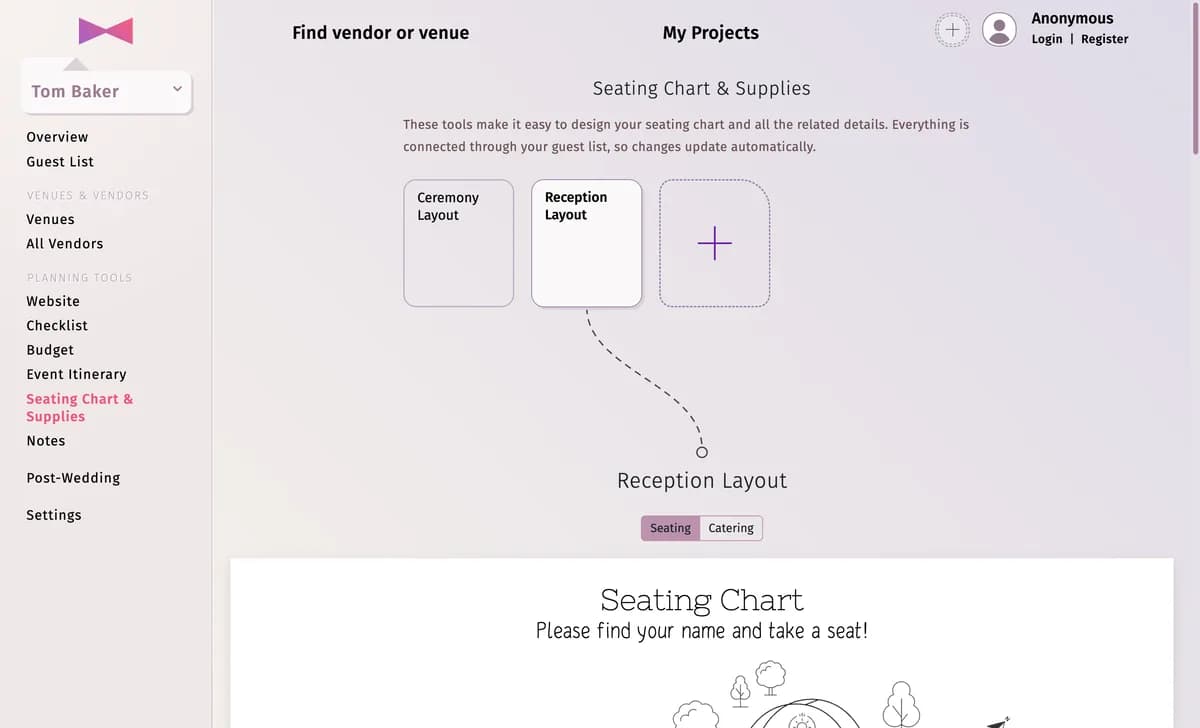
    Seating Chart & Supplies: the Ceremony and Reception layouts, the preview of the reception chart, Export settings and Download PDF file
  2. Step 2Open the editor

    Click Click here to edit layout under the preview. The editor opens full screen — see The seating chart editor.

  3. Step 3Add another layout (optional)

    Click + next to the charts. In Add new layout choose Reception Layout, Ceremony Layout or Copy Existing Layout.
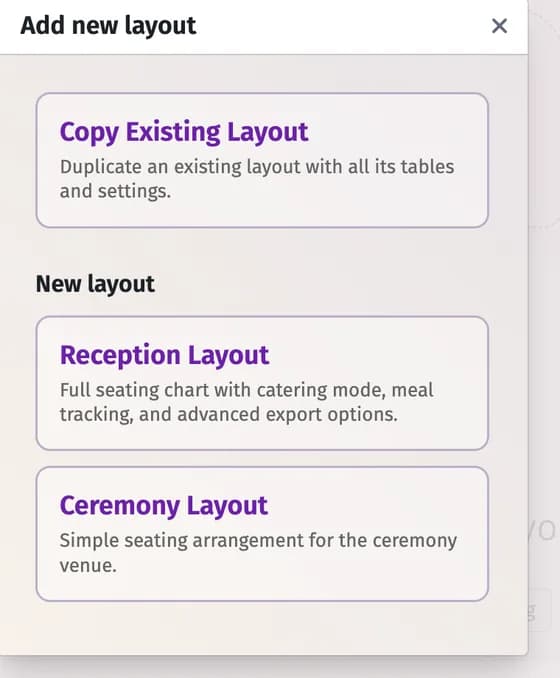
    The Add new layout window: Copy Existing Layout, Reception Layout and Ceremony Layout

Tips and important notes

  • On the free plan a project has one reception chart and one ceremony chart; a second chart of the same kind and copies need Premium — see Free plan limits.
  • A project can hold up to 4 charts.
  • A reception chart has two views: Seating shows who sits where, Catering shows each guest’s meal.

Updated November 3, 2026

Related articles

  • The seating chart editorAdd tables and decor, arrange the room and set how names and colours look on the chart.
  • Seat your guestsClick a seat and pick a guest, or drag guests onto tables and seats.
  • Free plan limits for seating chartsUp to 5 tables per chart and 3 rows of chairs on a reception chart for free — what happens when you need more.

Still need help?

Can’t find the answer? Write to us — a real person reads every message.

Contact us

On this page

  • Step by step
  • Tips and important notes
Wedding planning
Planning toolsMy projectsCreate a wedding projectWedding photo of the dayIdeas & adviceApp for iPhone & iPadApp for Android
For business
Business portalVirtual venue toursWhite-label integrationPricing
Company
About usHelp & FAQJobsMedia kitContact us
Your plans. Always with you.

Take your wedding planning wherever you go.

Download on the App StoreGet it on Google Play
InstagramThreadsFacebookX / TwitterPinterestYouTube
4.97116 reviews
English
© 2026 Wedding Planning Assistant LLCPrivacy & Legal Terms