Use your venue’s floor plan
Upload your venue’s plan as an SVG file and arrange the tables on top of it.
If your venue has its floor plan as an SVG file, you can put it on the chart as a layer and place the tables over it.
Step by step
Step 1Open the upload
In the editor, open File → Add custom SVG.
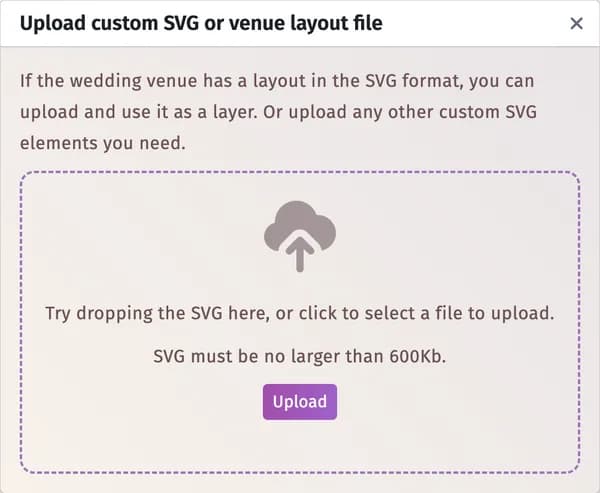
Step 2Upload the file
Drop the SVG onto the window or click Upload. It appears on the chart; move and resize it like any element.
Step 3Put the tables on top
Right-click the plan and choose Push to back layer, so it stays under the tables.
Tips and important notes
- The file must be an SVG of up to 600 KB, without photos or other pictures inside. A PDF or JPG plan has to be converted to SVG first.
- Starting from an empty room makes this easier — see Start over from a template or an empty layout.
- The same window adds any other SVG drawing you want on the chart.
Updated November 3, 2026