Share your project
Invite your partner, family or wedding planner with a full-access or view-only link.
Anyone you give a project link to can open the project — no account needed. There are two kinds of link: one lets people edit, the other only lets them look.
Step by step
Step 1Open the Collaboration window
Click the round button with a plus sign at the top of any project page, next to your profile picture.
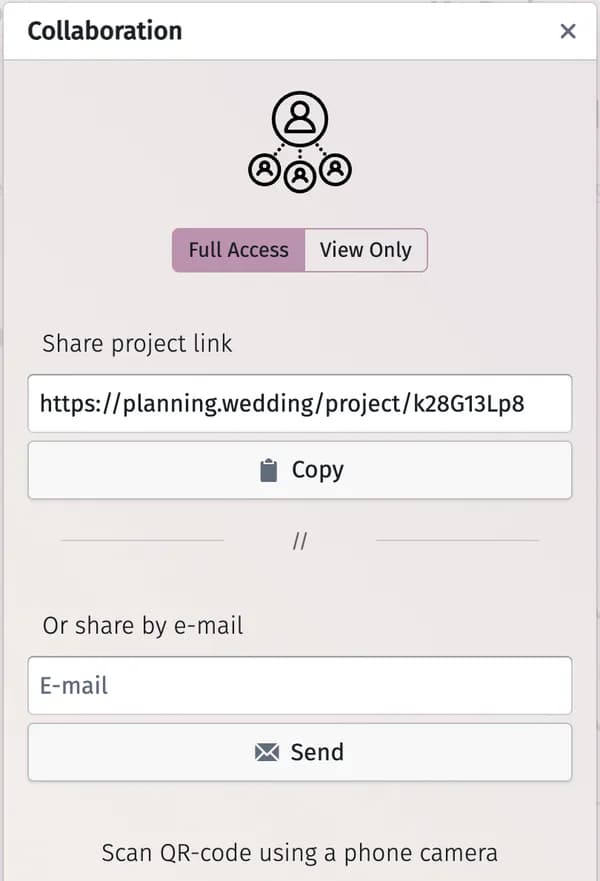
Step 2Choose the access
- Full Access — the person can change everything, including deleting the project.
- View Only — the person can see the project but not change it. This link starts with a $ sign.
Step 3Send the link
- Click Copy and send the link in any messenger.
- Or type an address under Or share by e-mail and click Send.
- Or let the person scan the QR code under Scan QR-code using a phone camera.
Step 4They open the link
The project is added to their My Projects. While they are in the project, their picture appears at the top of the page next to yours, and every change shows up for both of you at once.
Tips and important notes
- The full-access link works like a key: anyone who has it can edit or delete the project. Share it only with people you trust.
- People with a view-only link see only the view-only link in this window, so they cannot pass on edit access.
- There is no list of invited people to remove one by one. To cut off everyone at once, use Settings → Reset access IDs and share the new link again.
- The same sharing options are also in Settings → Collaboration.
Troubleshooting
- The other person can’t change anything.
- They opened a view-only link (it starts with $). Send them the Full Access link.
- The e-mail with the link didn’t arrive.
- Ask them to check the spam folder, or copy the link and send it yourself. The number of e-mails this window can send is limited.
Updated November 3, 2026