Protect your website with a password
Ask for a password before anyone can see your wedding website.
A password keeps uninvited visitors out of your website. Password protection needs Premium.
Step by step
Step 1Open the password settings
Open Website → Basic settings and click Add password protection (or add the Password Protection section with Add widget).
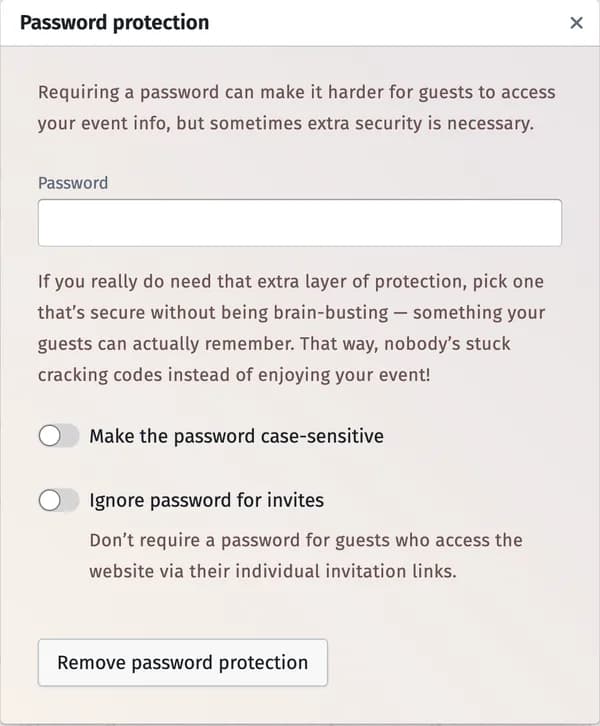
Step 2Set the password
Type it in Password. Choose something your guests can remember — and tell them.
Step 3Choose the options
- Make the password case-sensitive — upper and lower case must match.
- Ignore password for invites — guests who come with their personal invitation link don’t need the password.
Tips and important notes
- Remove password protection opens the website to everyone again.
- Want only invited guests to answer, but the website open to all? Limit the RSVP form instead — see RSVP deadline and who can answer.
Updated November 3, 2026